Overview
Remote Support and Control Features
Explore the tools IT teams need to securely access, support and manage remote devices. From screen control and file transfer to hardware inventory, PowerShell, remote system management and multi-device support, NetSupport Manager provides a comprehensive toolkit for on-premises remote support.



The remote control solution recommended by PC Pro! Read the latest review here. “In-house remote support at its best, with a superb range of technician features for a one-time fee”
Support devices from any location
Monitor and intervene quickly
Effective training and problem resolution
Fast and reliable connection every time
Other components
Easy set-up and use
A suite of user-friendly tools for effortless remote support in any environment – remote control perfected!
To get started with NetSupport Manager, all you need is a Client component on each device you want to connect to – and a Control component/app on any device you want to initiate a remote control connection from.
Configuration is easy. You can remotely deploy a configuration file containing all the specific settings for a Client or Control – and use the search facility to find the settings you need.
With NetSupport Manager’s command line interface, feature access using command line ‘switches’, support for variables and more, technicians have all the tools they need for comprehensive remote support, whatever your environment.


Support devices from any location
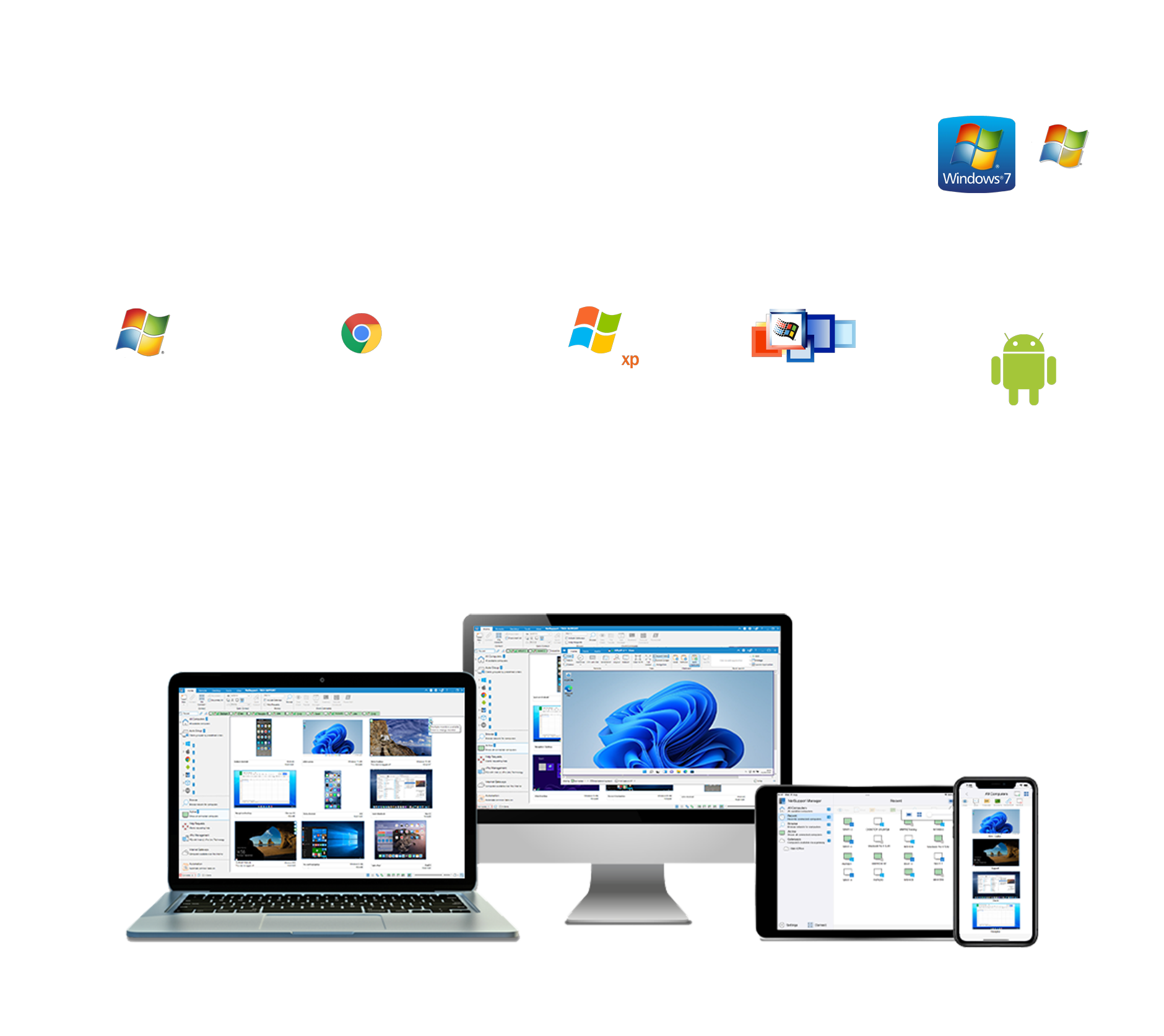
From a desktop, laptop, tablet or smartphone, you can support PCs, servers, smartphones, robots, and a range of Windows IoT devices – no matter the location.
Grouping: You can group remote systems based on pre-defined criteria such as operating system or PC type and create custom groups to reflect your company structure. To save you time, NetSupport Manager automatically groups all devices (so you can see whether any need updating!) – and it also provides quick access to a ‘recent’ list of connected devices.
Geo-location: NetSupport Manager can provide an approximate location of each remote device, displaying the town, state and country (with supporting flag). Devices are automatically grouped by country for easier management.
Remote working: Useful in scenarios where staff are suddenly forced to work from home, NetSupport Manager also allows them to remotely access their work PC as if they were sitting in front of it. Best of all, it only takes 5 minutes to set up!
“NetSupport Manager delivers a wealth of valuable features at SME-friendly prices.”
– PC Pro
Monitor and intervene quickly
Keep a constant eye on target systems and immediately identify whether intervention is required.
You can Watch, Share or Control the screen, keyboard and mouse of a workstation, irrespective of colour resolution, network protocol or operating system.
For a quick overview, simply monitor the screens of all connected systems with real-time thumbnails, then mouse over a selected PC to zoom your view. You can switch the view to Icons Mode, where all known devices are listed and overlaid with optional OS icons, location flags, Wi-Fi and battery details – and more.
Remotely launch applications on remote computers as part of your support.

Flexible communication
Bridge communication gaps for faster resolutions.
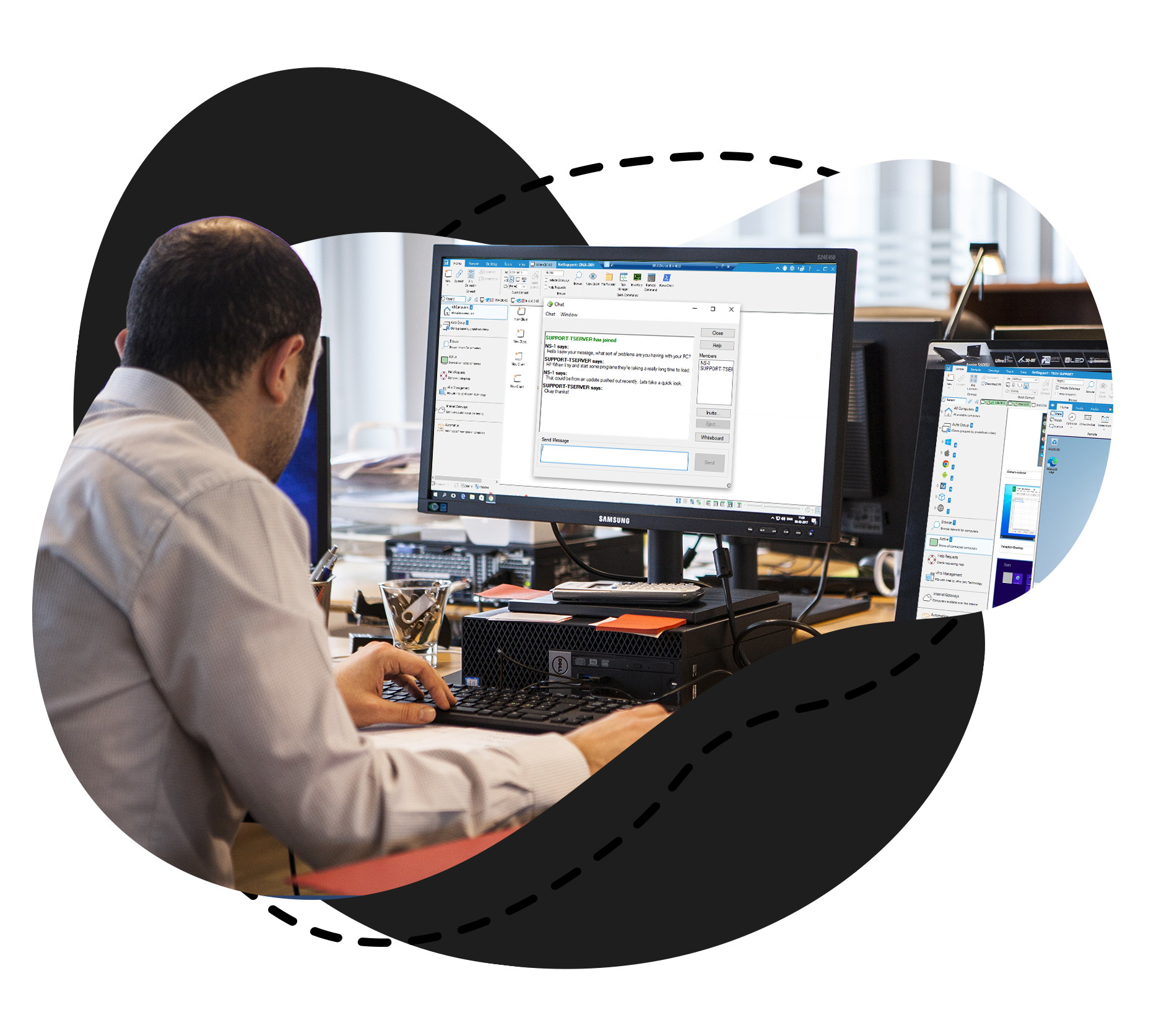
Conduct two-way chats with multiple users in either text or full audio mode. Send audible alerts, discussion history, and store chat logs for future reference.
Users can also send targeted or broadcast text-based messages to PCs – ideal for alerting your staff about an impending server shutdown or similar.
End users can also, when enabled, send help requests directly to your helpdesk when they need assistance – to all available operators or pr-defined operators.
“Simple to use, scalable and great support when needed.”
– MLR Networks
Effective training and problem resolution
Training staff can help to reduce support calls and free up technicians’ time. With NetSupport Manager, you can show your screen, a selected monitor/s or selected application/s to any number of connected computers for real-time instruction.
Annotate your screen with a range of drawing tools to highlight areas of focus for an end user or to aid in your presentation or training.
You can also capture screenshots during a session and record screen activity (even on POS devices) to a video for future reference.
Onboarding and CPD: Professional development is something most companies invest in for their employees. Included FREE within NetSupport Manager is NetSupport School which includes a wide range of possibilities for collaborative instruction, assessment and group working – as well as allowing tutors to guide and present directly to trainees’ devices.


Extra support tools
Boost remote support and diagnostics with these extra support tools to further minimise any downtime.
File transfer: Transfer files between your PC and a user’s workstation using a simple drag and drop interface, and uses intelligent Delta File Transfer to reduce data transfer times when overwriting files that already exist. Open, edit and save files on the users machine or drop a file direct to a user’s desktop. Distribute files or folders from your PC to multiple workstations simultaneously, and view the last 20 files you worked on and send to a user in 1 click.
Remote inventory and system information: View the hardware and software installed on each workstation, including current installed applications and installed OS hotfixes. Plus remotely view and, security permitting, control applications in memory, all processes running and currently installed services.
Additional support tools: Remotely Power On/Off, Log On/Off or Reboot a device, send a Wake on LAN command to machines not turned on, redirect queued jobs to be printed to pdfs (from Client to the Control), execute commands with PowerShell.
“No other product that we have found seems to come close to it.”
– Cunning Running Software Ltd
Secure remote connectivity
A range of connectivity methods (Optimised for both wired and wireless connections and supporting subnets) to ensure devices are accessible no matter the location – with no need for external third-party services or changes to your existing network or firewall security.
Browse, locate and connect to any number of systems across your LAN, WAN or over the internet using TCP/IP or HTTP (legacy support for IPX and NetBIOS). Connect directly to known computers by PC name, DNS name or network address.
PIN connect
A technician can locate a user anywhere across the enterprise instantly, simply by both parties entering a matching and unique PIN code. Rather than browsing to discover the user’s PC and needing to know their PC name, address details etc, the PIN process allows both parties to handshake seamlessly. The PIN server module can run alone or alongside the Gateway module and is included as standard with NetSupport Manager.
Utilising the internet (The Gateway)
The Gateway allows seamless remote support between secure, firewalled networks and computers. Installed on a PC allocated with a static IP and accessible to both Control and Client PCs, will only allow connections from computers using the same Gateway Security Key and is used to support staff or customers across different sites or where staff on the road need access to office resources. The Gateway is not needed for LAN/WAN-based communications.
Load Balancing Gateways
These are available to help make networks more resilient. To avoid a single point of failure, user connections can now be automatically spread across multiple cluster member gateways, using a round robin method. In the event that one of them goes down, connections are automatically redistributed, thereby minimising any disruption.
Security certificates
To help ensure that all data sent across the Gateway is encrypted, SSL/TLS certificates can be used. These also allow the Clients and the Controls to verify that the Gateway they are connecting to is genuine. Customers can use their own certification details or allow the Gateway to create and use Let’s Encrypt certificates that automatically renew every 30 days, thereby reducing the danger of out-of-date details creating a security risk.
Two-factor authentication
(2FA) is also available for operators connecting to the Gateway to start a remote connection. This extra layer of security uses time-based OTP (TOTP) or DUO Push to authenticate the operator for up to 12 hours – as well as supporting businesses choosing to use RADIUS authentication across their networks.
Optional components
IT Management and Tracking
With NetSupport DNA you can track, monitor and manage your IT assets and endpoints, ensuring they are maximised and being used appropriately, whilst identify cost savings and any security threats – all from one comprehensive toolbox.
Mass Notification and Alerting
NetSupport Notify sends one-way alerts and notifications to desktop users across the company, those working remotely on work devices, and even to large information panels in halls and foyers.
